
YOUR SETUP GUIDE
Get started with Sonic
Follow the steps below to create your account, complete verification and connect to the Sonic copy strategy.
Leveraged CFD trading can result in loss of capital. Read the risks and historical methodology.
WHEN YOU ARE READY
Create your CopyX account.
Registration opens with the external provider. Review current terms before entering personal details or funding.
Create My Account ↗ (opens CopyX in a new tab)CopyTradingHQ participates in the referral programme and may receive commissions from eligible registrations and trading activity generated through its referral links. Our disclosure.

14 steps. Your pace.
Screenshots show the supplied provider flow, with private details removed. Your screen and available options may differ. This guide is not connected to your broker account and does not track actual account approval or connection status.
Already connected to Sonic? Set up MT5 to view your trades →
- 01
Register with CopyX
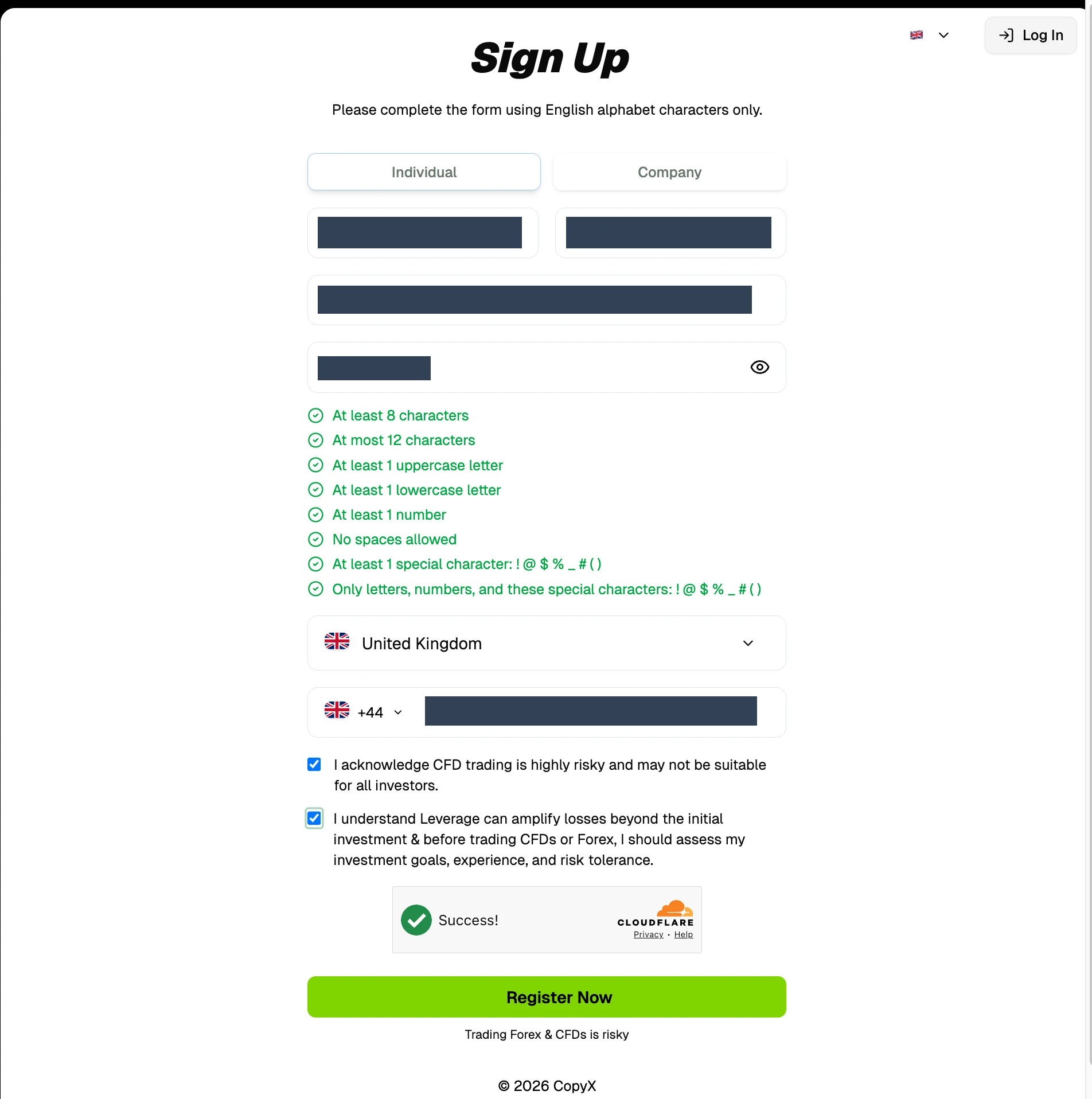
Open our registration link or scan the QR code above. Choose Individual or Company as appropriate, enter your name and email, create a password that meets the displayed requirements, and enter your country and phone number. Read the risk acknowledgements, complete the security check and select Register Now.
Create My Account ↗ (opens CopyX in a new tab)View screenshot
 Open full-size screenshot ↗
Step 1 · Register with CopyX. Private details are hidden; public community codes are shown where relevant. - 02
Verify your CopyX email
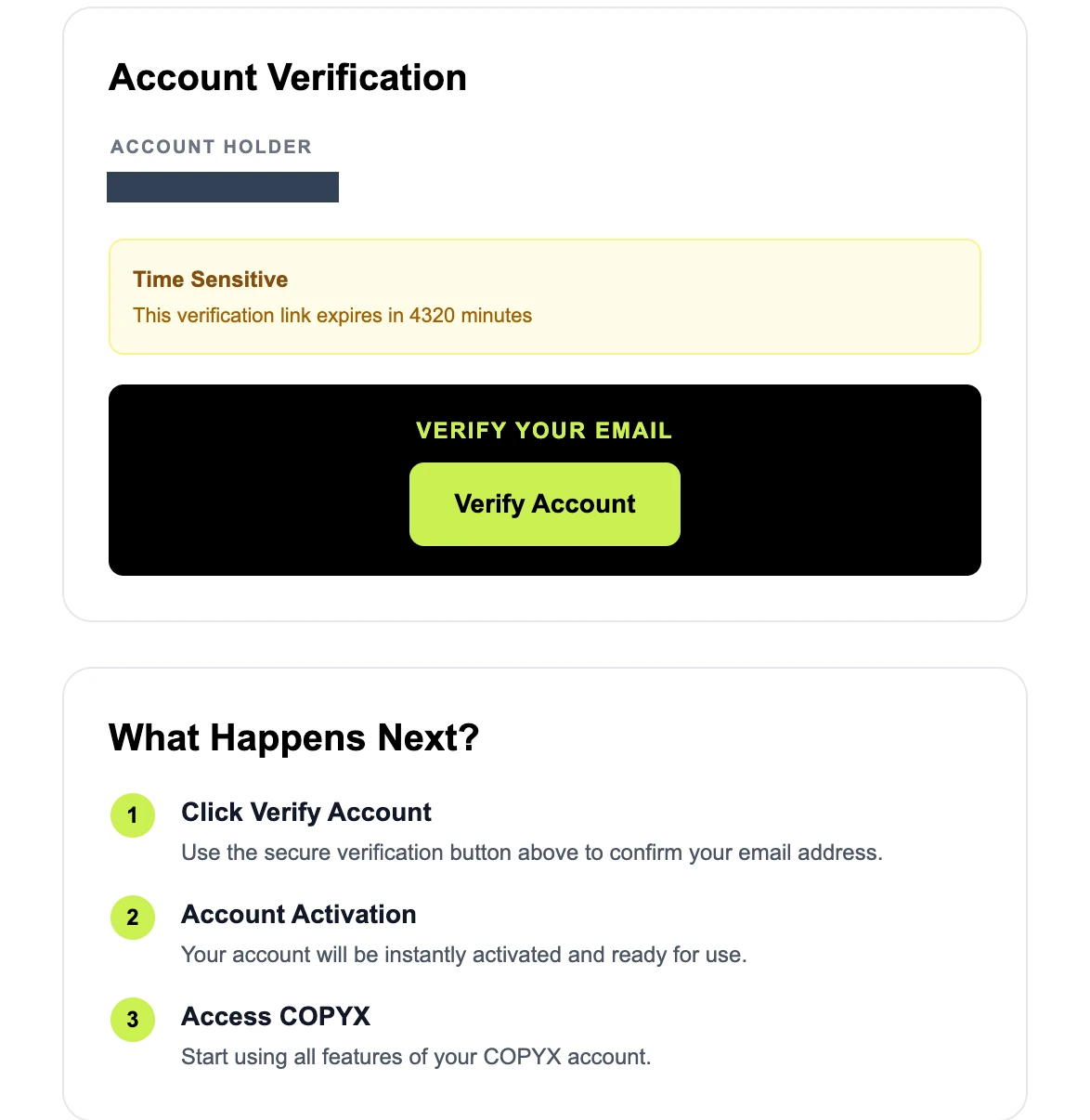
Open the Account Verification email from CopyX and select Verify Account before the link expires. Then return to CopyX and log in if prompted.
View screenshot
 Open full-size screenshot ↗
Step 2 · Verify your CopyX email. Private details are hidden; public community codes are shown where relevant. - 03
Open the linked Tag Markets setup
In the CopyX portal, open Profile and find the CopyX Registration panel. Use the button in that panel to continue to the linked Tag Markets account. The supplied screen shows Login to CopyX for an existing account; a new account may show a registration action. Follow this linked route so the accounts are synchronised.
View screenshot
 Open full-size screenshot ↗
Step 3 · Open the linked Tag Markets setup. Private details are hidden; public community codes are shown where relevant. - 04
Confirm your Tag Markets email
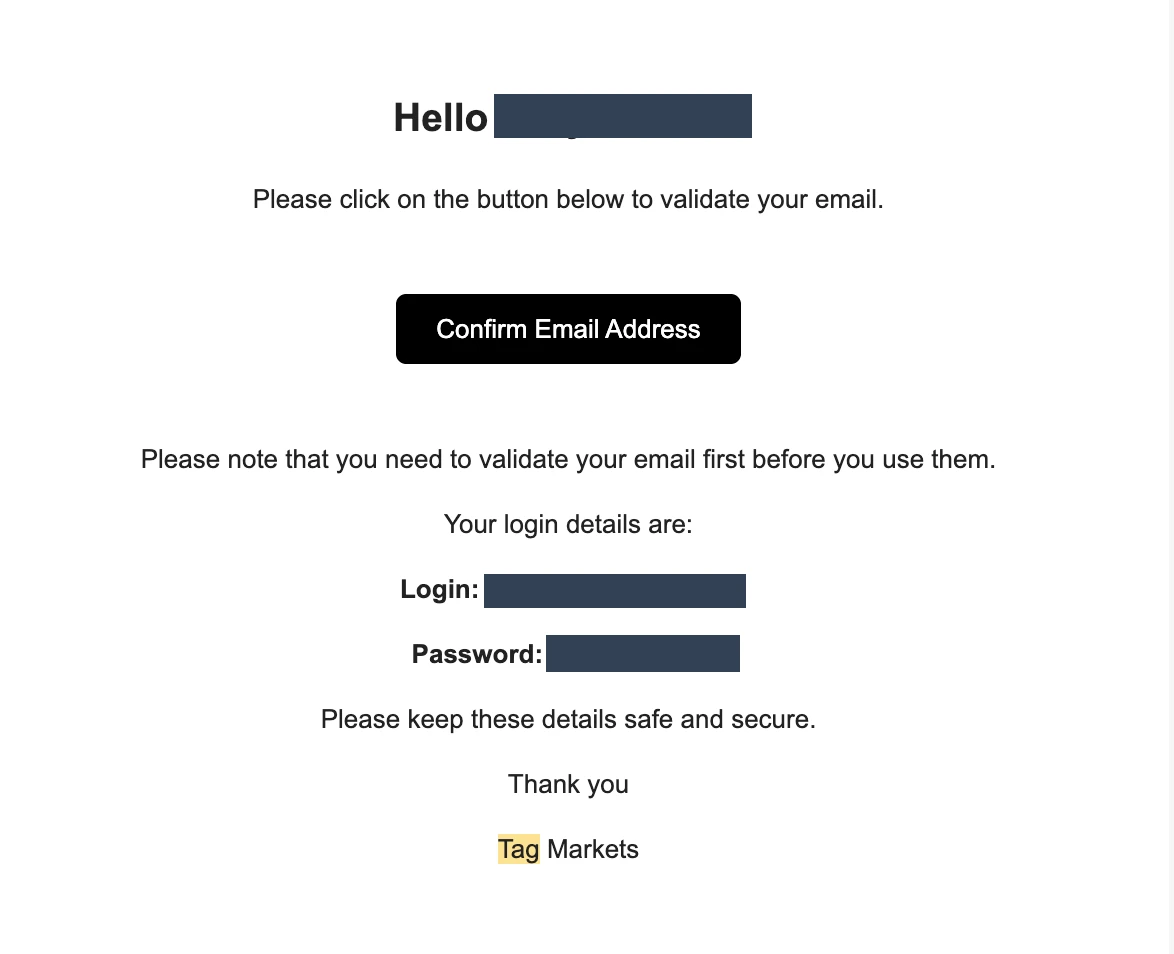
Open the separate Tag Markets email and select Confirm Email Address. Once confirmed, use your own login details to access the Tag Markets portal. Keep the email and password private.
View screenshot
 Open full-size screenshot ↗
Step 4 · Confirm your Tag Markets email. Private details are hidden; public community codes are shown where relevant. - 05
Complete identity verification
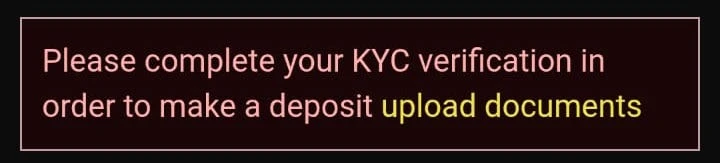
In Tag Markets, select upload documents in the KYC verification banner. Complete the requested identity checks through the provider’s secure process and wait for approval before depositing.
View screenshot
 Open full-size screenshot ↗
Step 5 · Complete identity verification. Private details are hidden; public community codes are shown where relevant. - 06
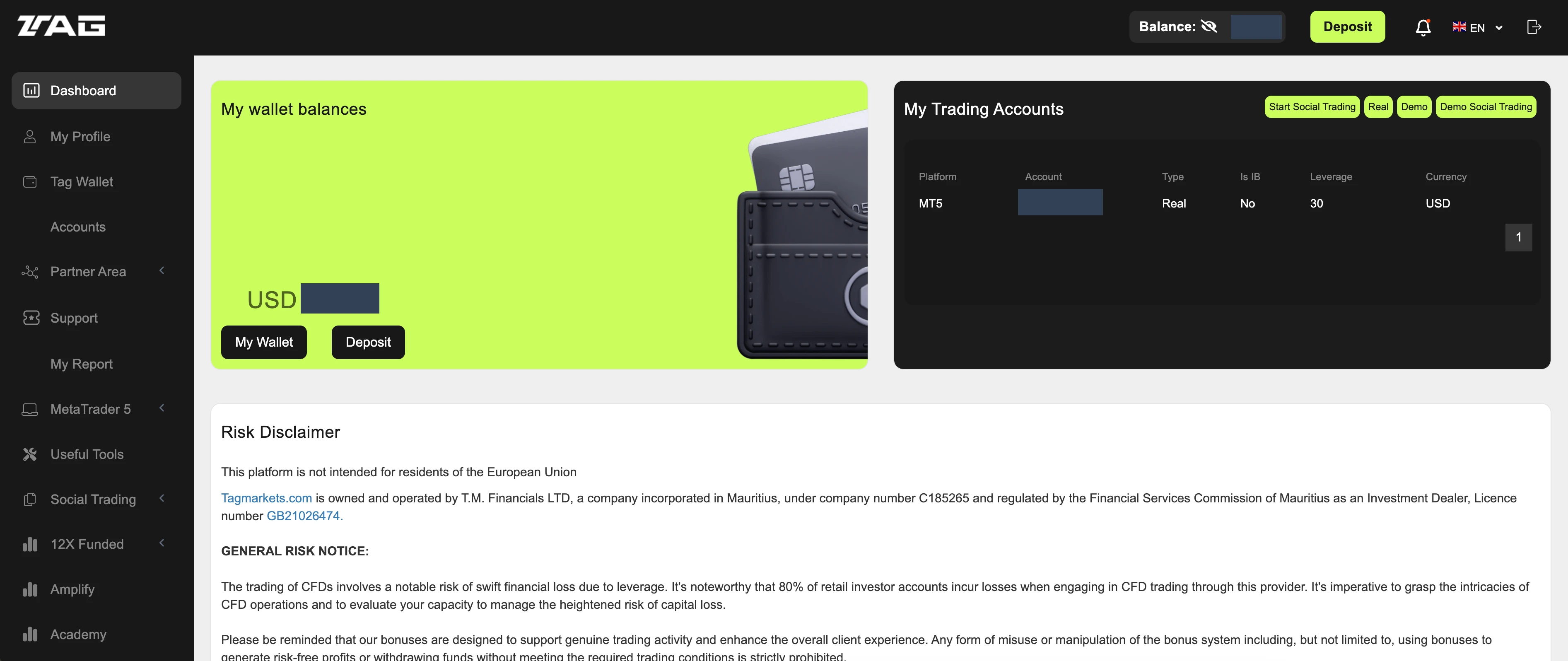
Start a deposit in Tag Markets
From Dashboard, select Deposit in My wallet balances or at the top of the page. Deposits can be made using fiat currency or cryptocurrency through the methods supported in your account. Withdrawals can be made to supported crypto wallets or EU bank accounts. UK bank withdrawals are not currently supported. Review the funding and withdrawal terms below before continuing.
Review deposits and withdrawals →View screenshot
 Open full-size screenshot ↗
Step 6 · Start a deposit in Tag Markets. Private details are hidden; public community codes are shown where relevant. - 07
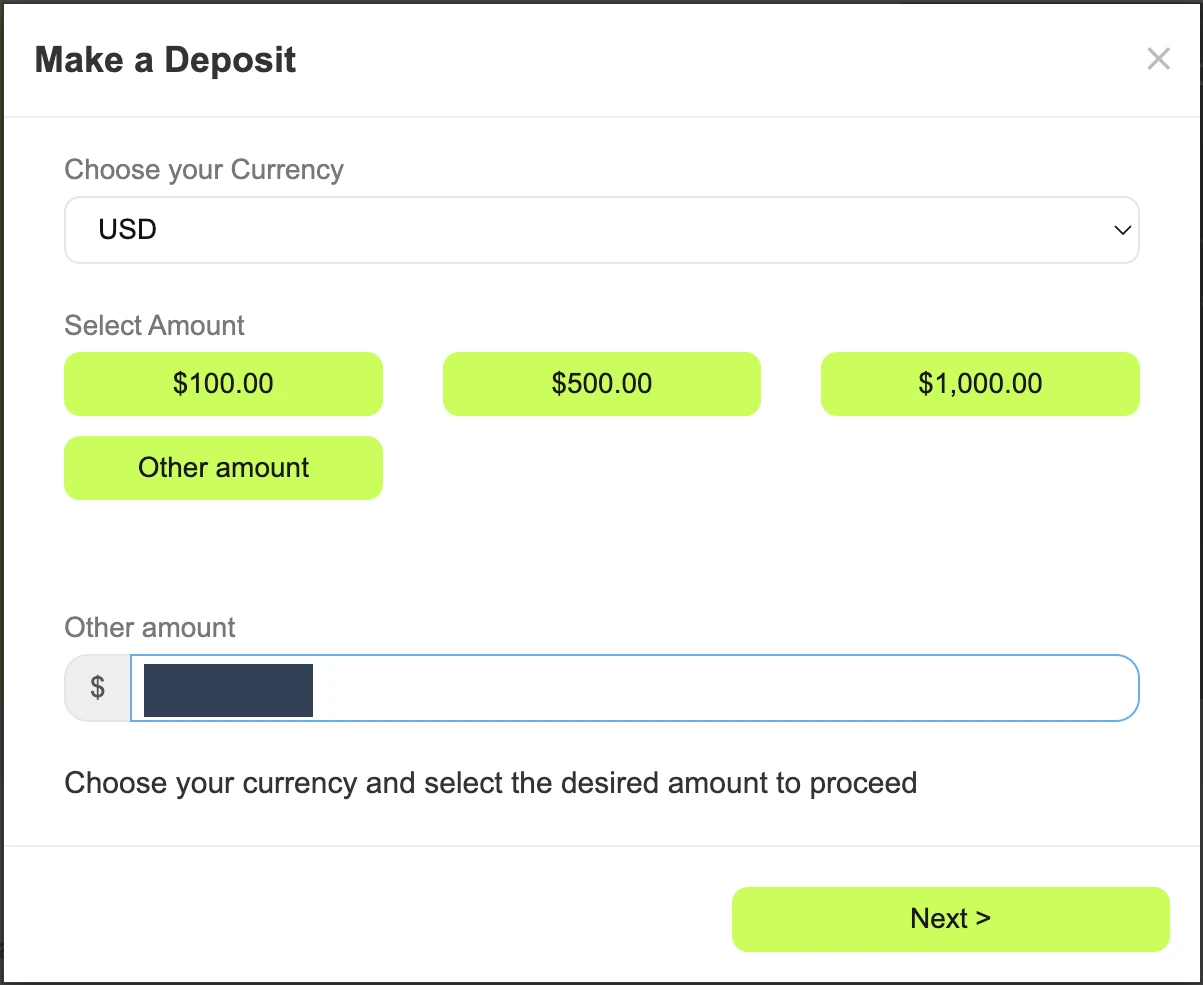
Choose your deposit amount
In Make a Deposit, choose your currency. Select a preset amount or Other amount and enter your own amount, then select Next. The screenshot’s entered amount is hidden; choose an amount suitable for your circumstances.
View screenshot
 Open full-size screenshot ↗
Step 7 · Choose your deposit amount. Private details are hidden; public community codes are shown where relevant. - 08
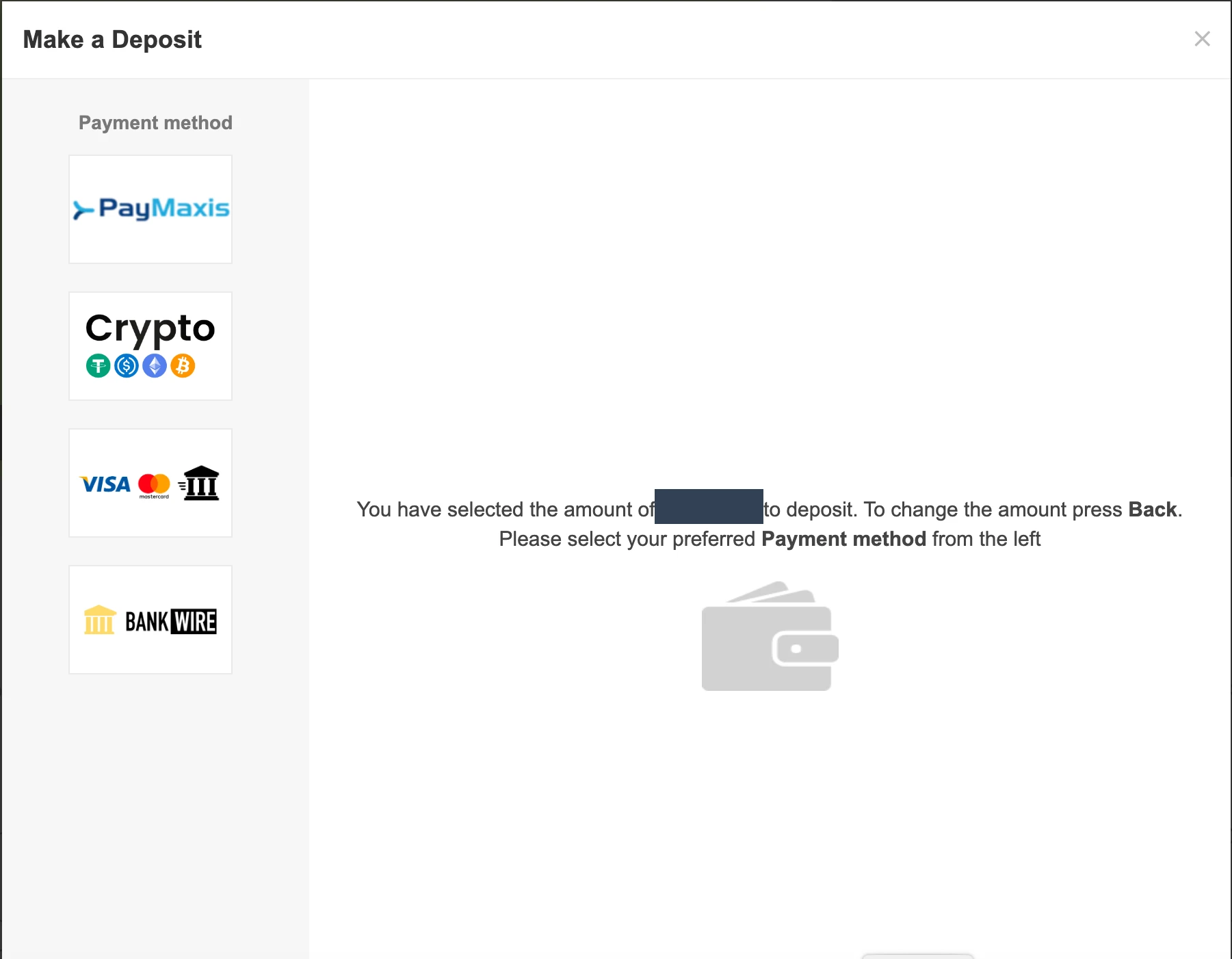
Choose a payment method
Select an available payment method from the left of Make a Deposit. The supplied screen shows PayMaxis, Crypto, card and bank wire options; availability depends on your account. Follow the provider’s payment instructions and wait for the deposit to appear in your wallet before continuing. Use only the payment details shown in your own secure session.
View screenshot
 Open full-size screenshot ↗
Step 8 · Choose a payment method. Private details are hidden; public community codes are shown where relevant. - 09
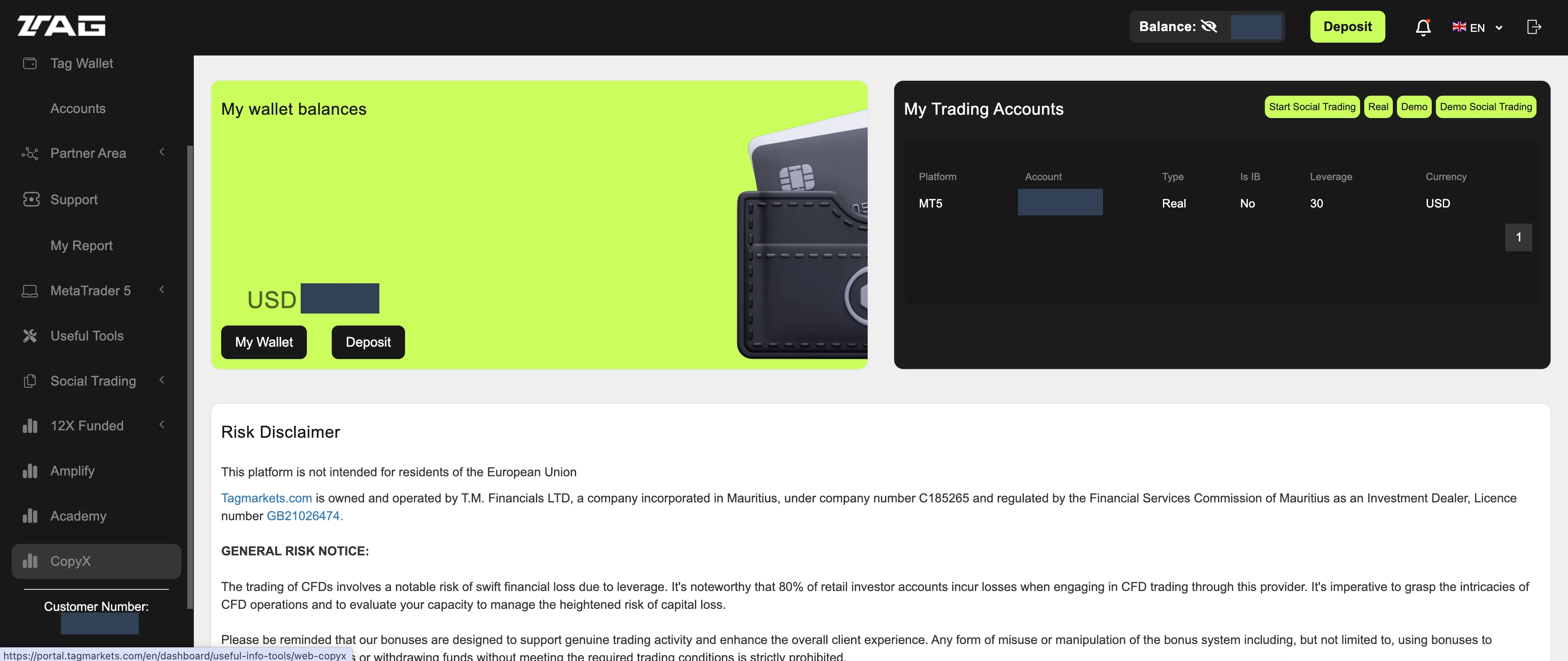
Open CopyX from Tag Markets
Scroll down the Tag Markets left-hand menu and select CopyX to open the copy-trading area.
View screenshot
 Open full-size screenshot ↗
Step 9 · Open CopyX from Tag Markets. Private details are hidden; public community codes are shown where relevant. - 10
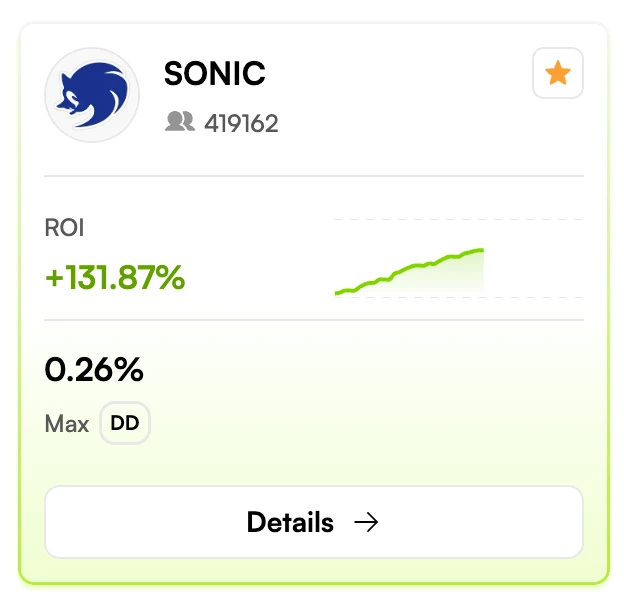
Find Sonic and open Details
Locate the SONIC strategy card and select Details. Figures in these screenshots are historical provider displays, not live CopyTradingHQ statistics or verified drawdown figures.
Review Sonic →View screenshot
 Open full-size screenshot ↗
Step 10 · Find Sonic and open Details. Private details are hidden; public community codes are shown where relevant. - 11
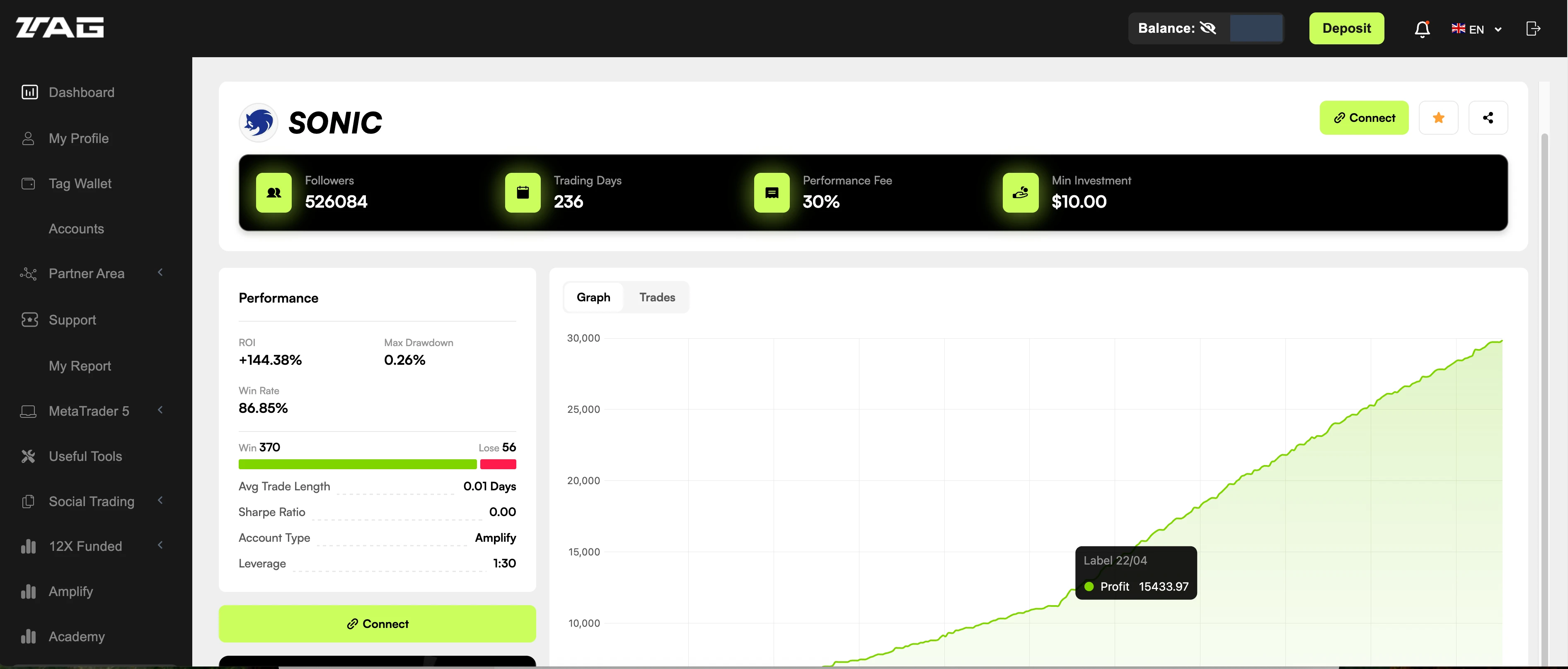
Review Sonic and select Connect
Review the strategy details, performance fee, minimum investment and account terms. Select Connect to open the Copy Strategy window. This opens the configuration screen; the final action comes later.
View screenshot
 Open full-size screenshot ↗
Step 11 · Review Sonic and select Connect. Private details are hidden; public community codes are shown where relevant. - 12
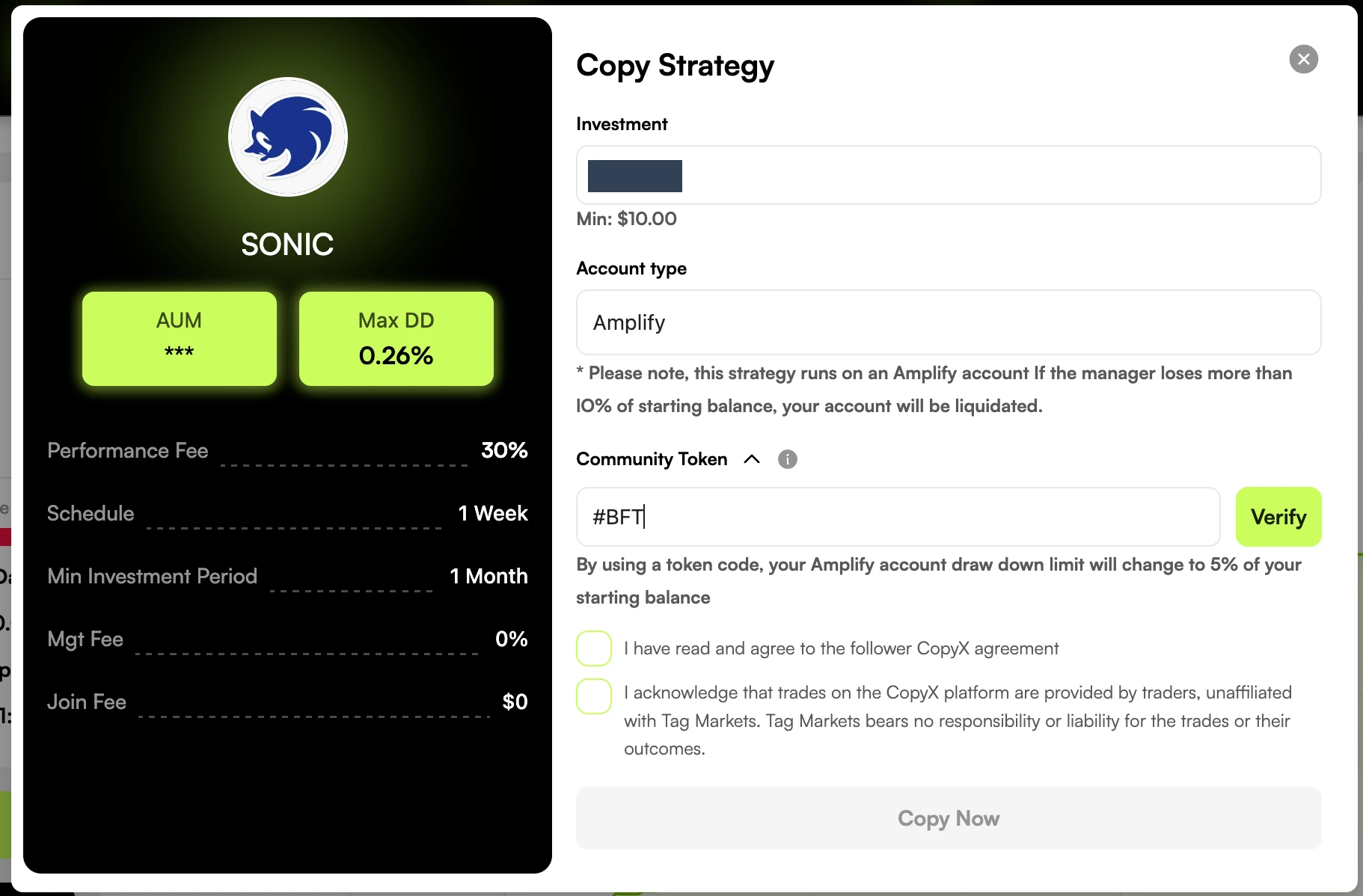
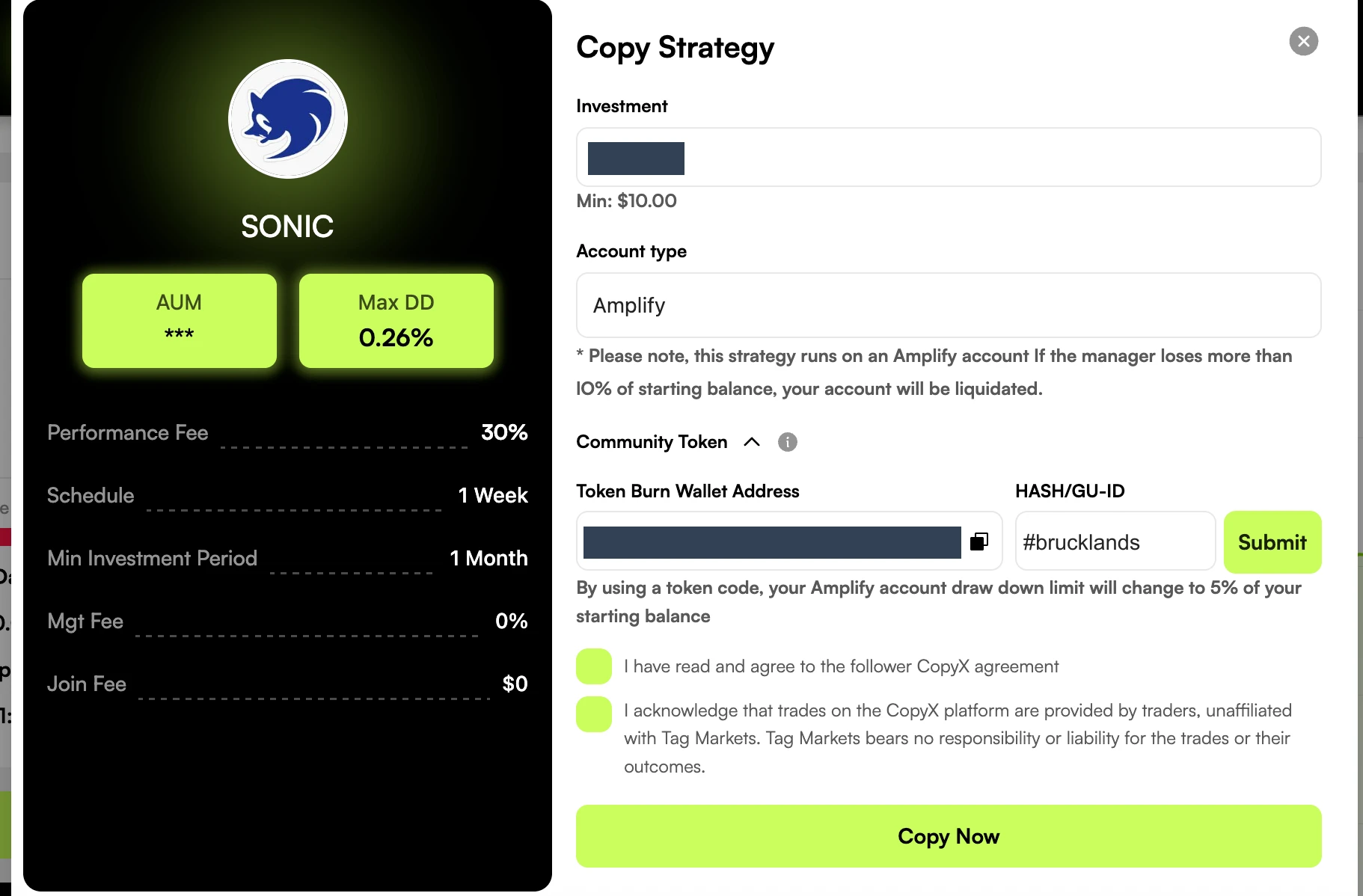
Set your investment and enter #BFT
Enter your chosen Investment in Copy Strategy and review the displayed Amplify account type, fees, minimum investment period and liquidation warning. For the member 24× leverage setup, enter #BFT in Community Token and select Verify. Read the changed drawdown-limit terms displayed by the provider before proceeding; a token is not protection against loss.
Read the risk guide →View screenshot
 Open full-size screenshot ↗
Step 12 · Set your investment and enter #BFT. Private details are hidden; public community codes are shown where relevant. - 13
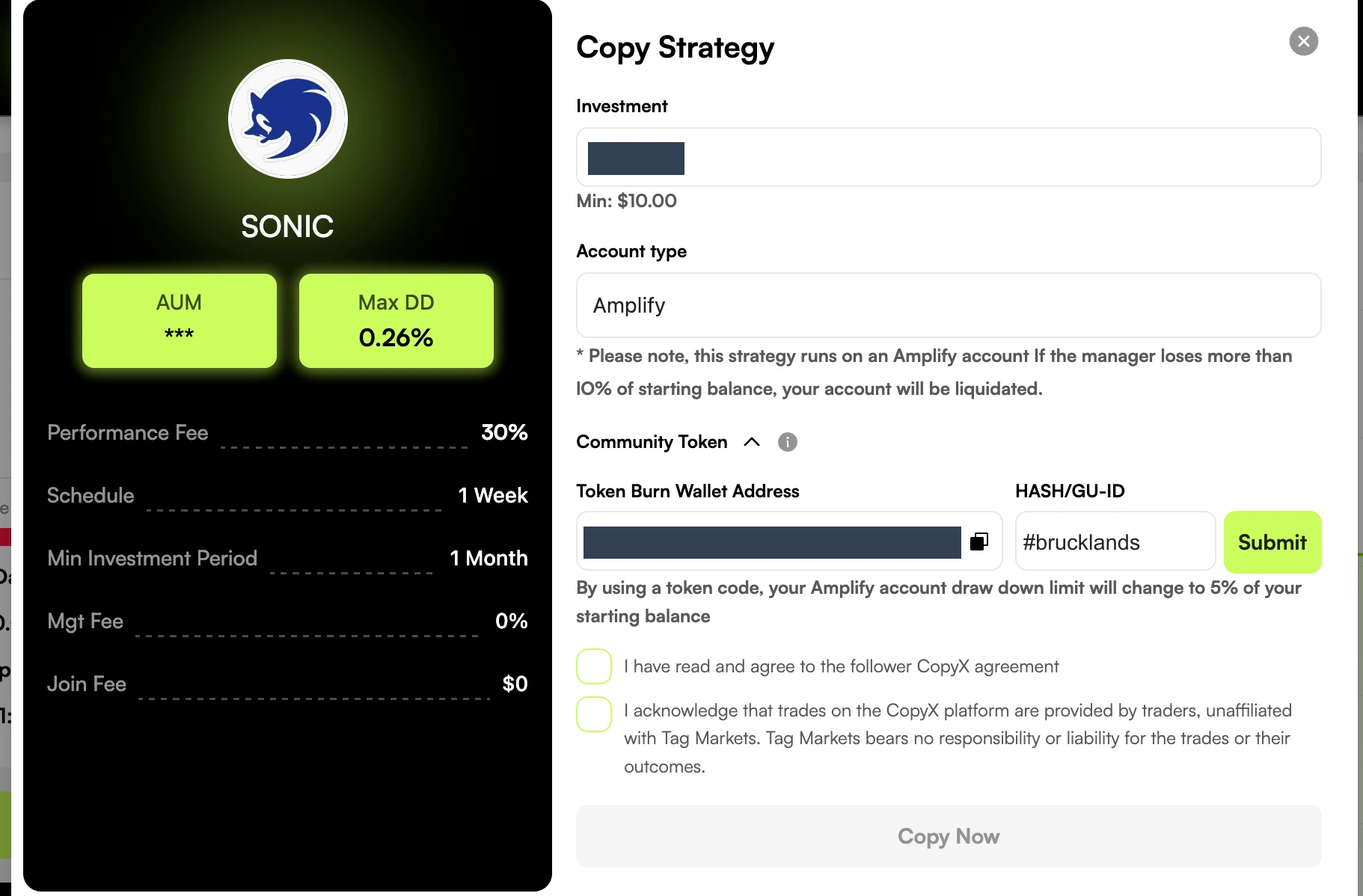
Enter #brucklands and submit
After verifying #BFT, enter #brucklands exactly in HASH/GUI-ID and select Submit. These are the community codes for the member 24× leverage setup. Confirm the provider has accepted the codes and that your account shows the intended leverage and terms before selecting Copy Now. The wallet address remains hidden; use only payment details from your own secure account if the provider requests a transfer.
View screenshot
 Open full-size screenshot ↗
Step 13 · Enter #brucklands and submit. Private details are hidden; public community codes are shown where relevant. - 14
Review the agreements and select Copy Now
Read the follower CopyX agreement and the trader-responsibility acknowledgement. If you agree, tick both boxes, review your investment and all settings, then select Copy Now. Clicking Copy Now completes your Sonic copy-trading setup. The following MT5 steps are optional and let you view your account and trades. The initial investment becomes eligible for withdrawal after 30 days. Reinvesting profits restarts the 30-day withdrawal clock. Consider this before choosing to reinvest.
View screenshot
 Open full-size screenshot ↗
Step 14 · Review the agreements and select Copy Now. Private details are hidden; public community codes are shown where relevant.
Optional: view your trades in MT5
Clicking Copy Now in step 14 completes your automatic copy-trading setup. Steps 15–22 are optional: they add a read-only view of your account to MetaTrader 5 on your phone, making it easy to follow your trades. MT5 is not required for copying to run.
- 15
Open Follower Hub
Log in to Tag Markets and open the CopyX page. Click Follower Hub at the top.
View screenshot
 Open full-size screenshot ↗
Tag Markets CopyX page: select Follower Hub. - 16
Find your MT5 details
Scroll down to MT5 Credentials. Keep your MT5 Account # and Investor Password handy for the next steps. Use the Investor Password for viewing your account; the Master Password is not needed. Keep both passwords private.
View screenshot
 Open full-size screenshot ↗
MT5 Credentials: account number and both passwords permanently hidden. - 17
Download MetaTrader 5
Use the download links below to install MetaTrader 5 (MT5) on your phone. On Google Play, choose MetaTrader 5 by MetaQuotes. Once installed, open the app.
- 18
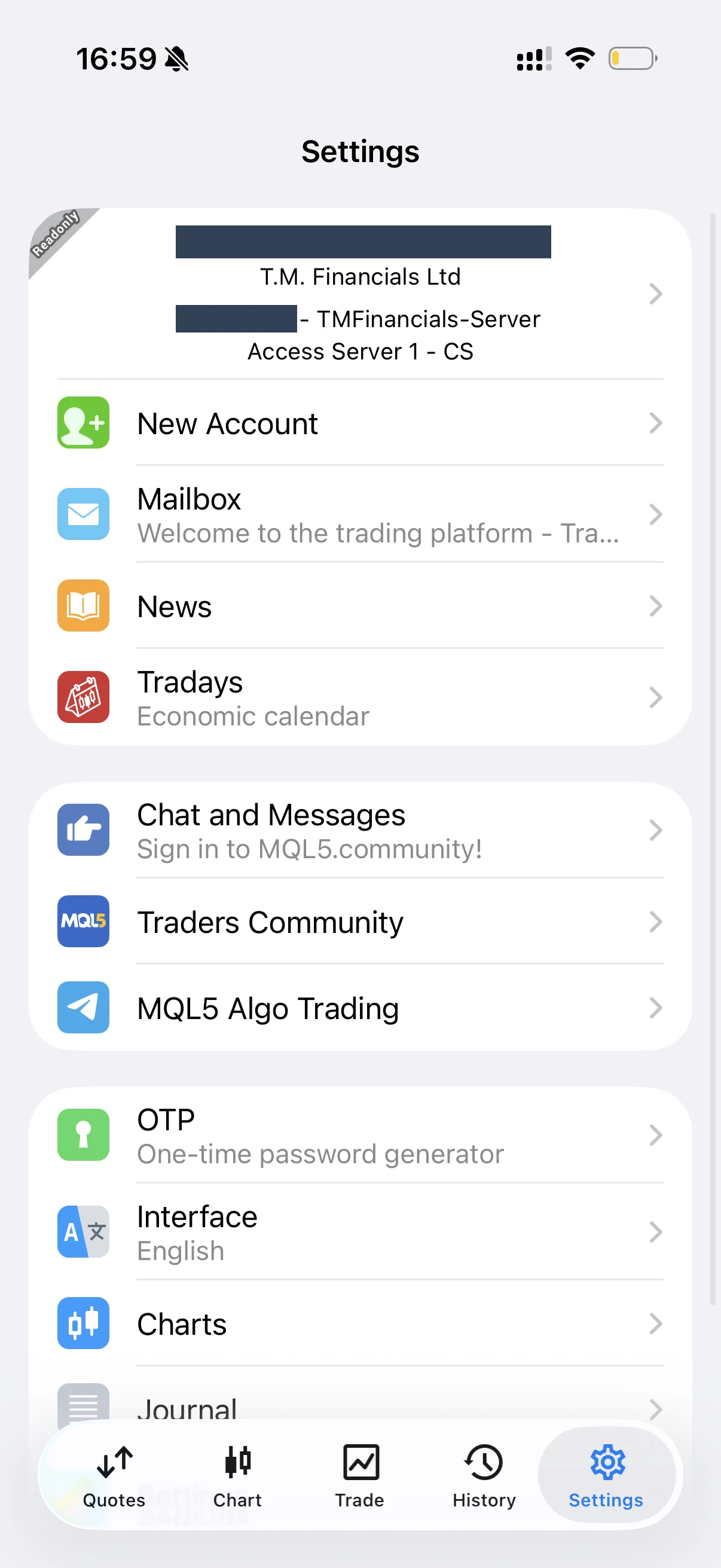
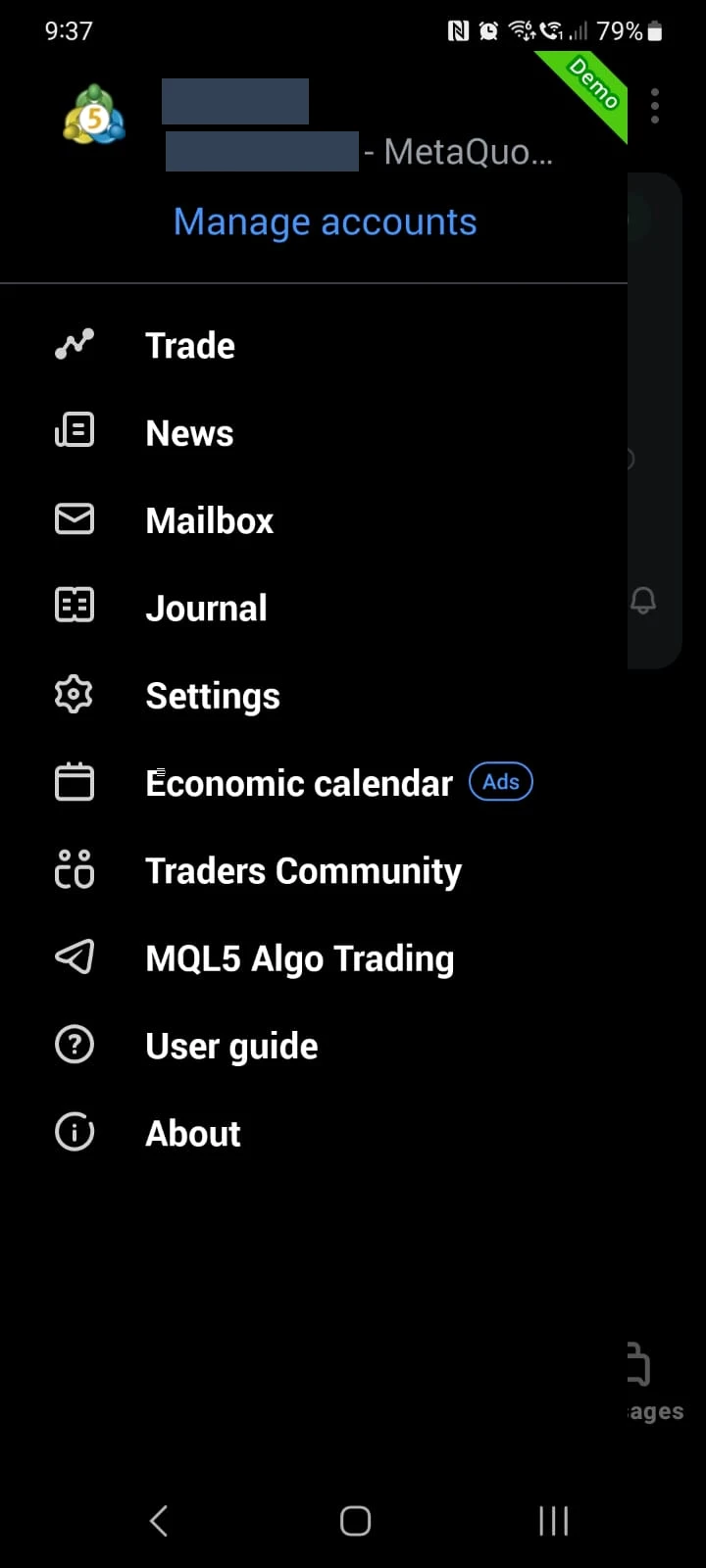
Open your account settings
On iPhone or iPad, tap Settings at the bottom of MT5. On Android, open the side menu and tap Manage accounts.
View screenshot
 Open full-size screenshot ↗
iOS: Settings is at the bottom. Personal name and account number hidden. View Android screenshot
 Open full-size screenshot ↗
Android: open the side menu and tap Manage accounts. Personal details hidden. - 19
Add your existing account
On iOS, tap New Account. On Android, tap the add-account (+) button in account management. This lets you connect the account you already have; you do not need to create a new trading account.
- 20
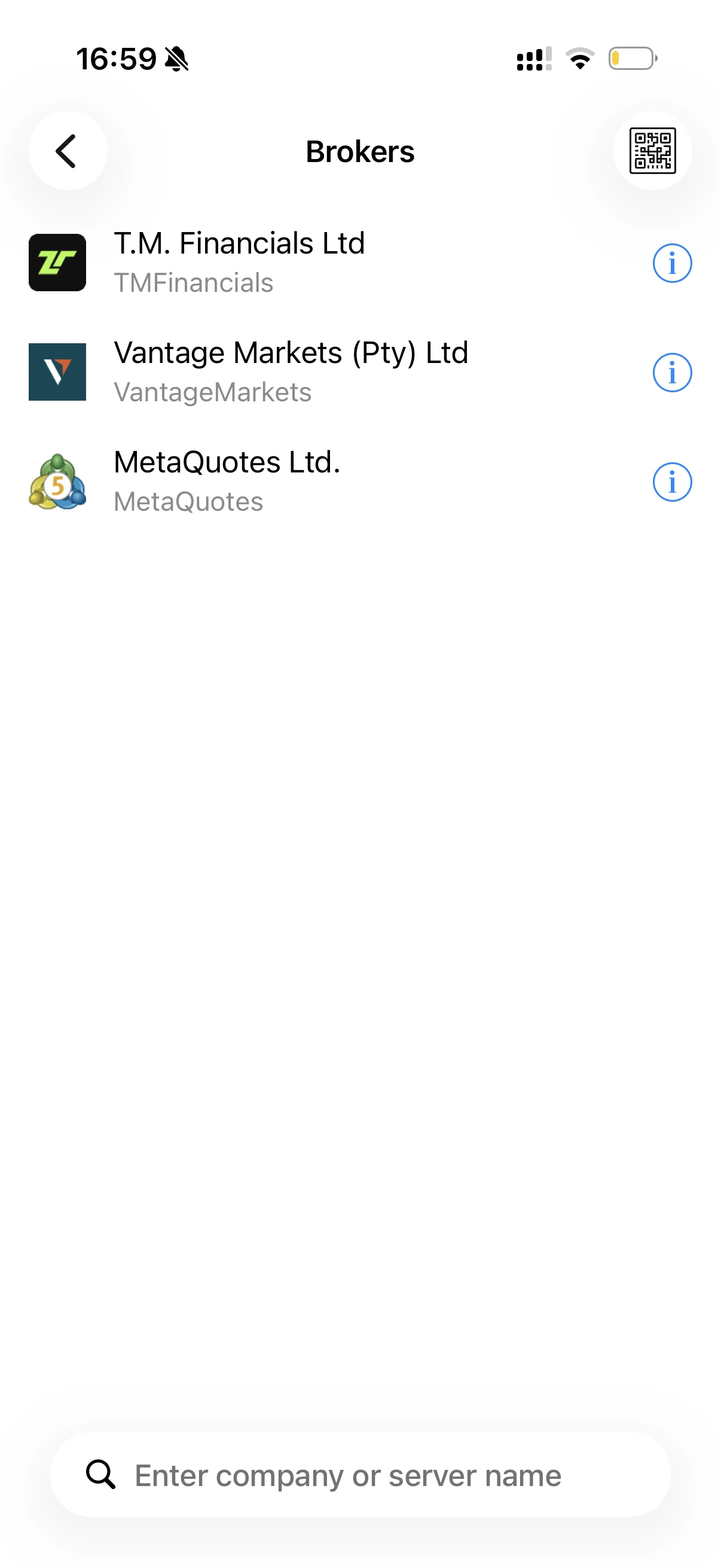
Choose your broker and server
Search for T.M. Financials Ltd (TMFinancials) and select it. The supplied screen shows TMFinancials-Server. Check the server matches the details for your own Tag Markets account.
View screenshot
 Open full-size screenshot ↗
Search for T.M. Financials Ltd in the MT5 broker list. - 21
Sign in with your investor password
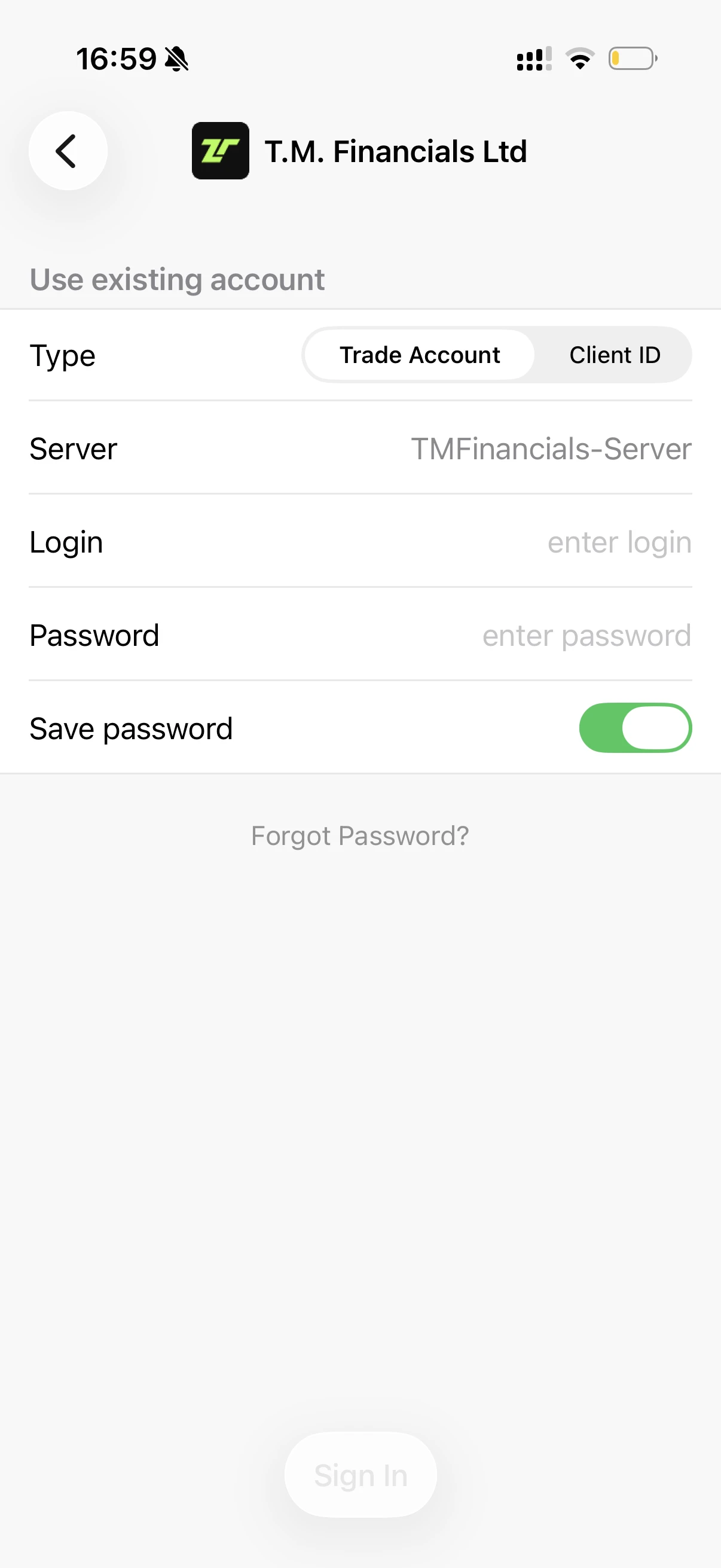
Under Use existing account, select Trade Account if shown. In Login, enter your MT5 Account # from Follower Hub. In Password, enter your Investor Password. Check the server, then tap Sign In (or Login on Android). Investor access lets you view the account without placing trades.
View screenshot
 Open full-size screenshot ↗
Use your MT5 account number as Login and your Investor Password as Password. - 22
View your trade history
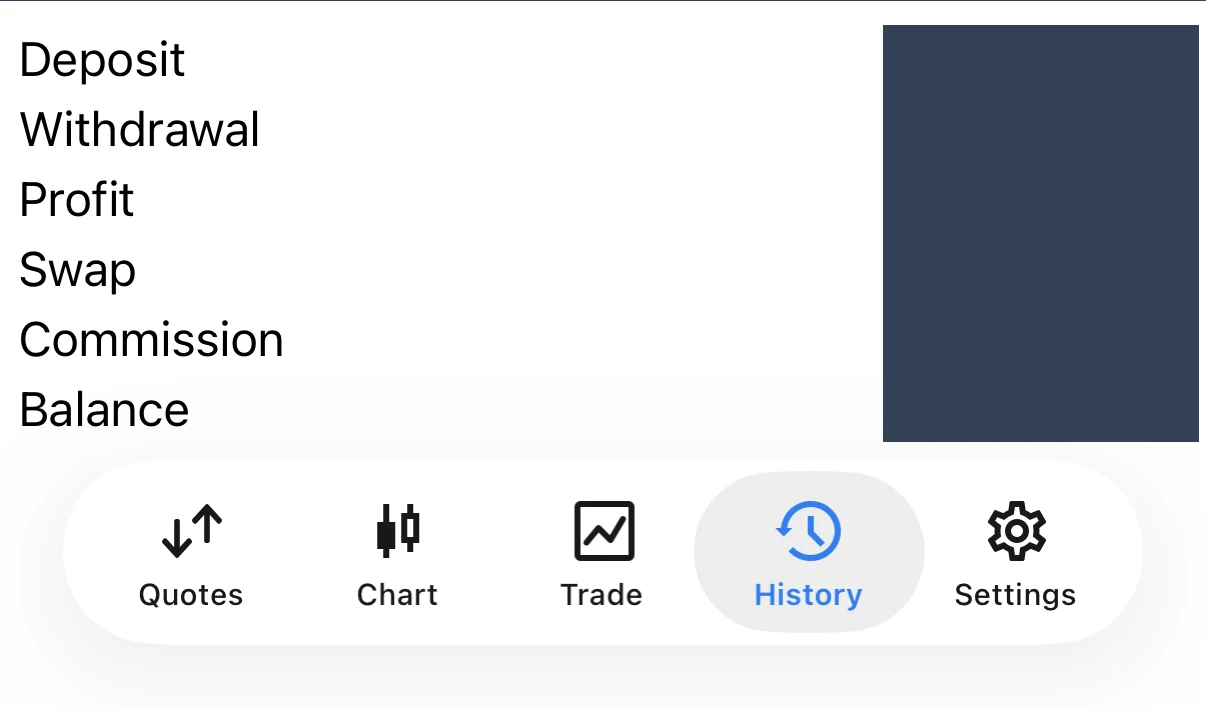
Tap History to see completed trades and account activity. On Android, open History from the side menu if it is not shown as a tab. Adjust the date range to see older trades. Open positions are shown in Trade. The screenshot is cropped to the History navigation and summary, with all financial values hidden.
View screenshot
 Open full-size screenshot ↗
MT5 History tab selected. Private financial figures permanently hidden.
YOU’VE REACHED THE END OF THE GUIDE
Congratulations on completing your setup!
Once you’ve clicked Copy Now in step 14, you’re set up for automatic copy trading with Sonic. If you’ve also completed the optional MT5 steps, you can easily view your account and completed trades on your phone.
Keep an eye on your trades and account balance in Follower Hub, or use MT5 if you’ve added your account there.
Explore Sonic’s performance →Deposits, withdrawals and the 30-day clock
Adding funds
Deposits can be made using fiat currency or cryptocurrency through the methods supported in your account.
Where withdrawals can go
Withdrawals can be made to supported crypto wallets or EU bank accounts. UK bank withdrawals are not currently supported.
Access to profits and your initial investment
Profits can be withdrawn at any time, provided they have not been reinvested. The initial investment becomes eligible for withdrawal after 30 days.
Reinvesting profits restarts the 30-day withdrawal clock. Consider this before choosing to reinvest.
Withdrawal eligibility does not mean instant payment. Available funds, verification, fees and processing requirements remain subject to current CopyX/Tag Markets account terms. Trading losses can reduce the amount available to withdraw.
This is a personal checklist, not an account approval or a waiver. Leveraged trades can lose capital. Read the risk guide.
Once you’re connected: what happens next?
Copied trades appear in your broker account. They may win or lose. Monitor the account and its current terms, and understand how to stop copying and manage open positions.
Follow Sonic’s historical performance. These master-based figures may differ from your actual account.
SEPARATE ROLES. CLEAR RESPONSIBILITIES.
Who does what?
CopyTradingHQ
Education, analytics, onboarding guidance and affiliate/referral website. We do not hold your trading funds.
Sonic
The strategy being followed. Separate from CopyTradingHQ.
CopyX
The system connecting eligible strategy trades to your account.
Tag Markets
The broker and trading account provider.
You
Own and control your broker account, subject to platform and account terms.